3D STEP Viewer
Deze inhoud is nog niet vertaald.
What it does
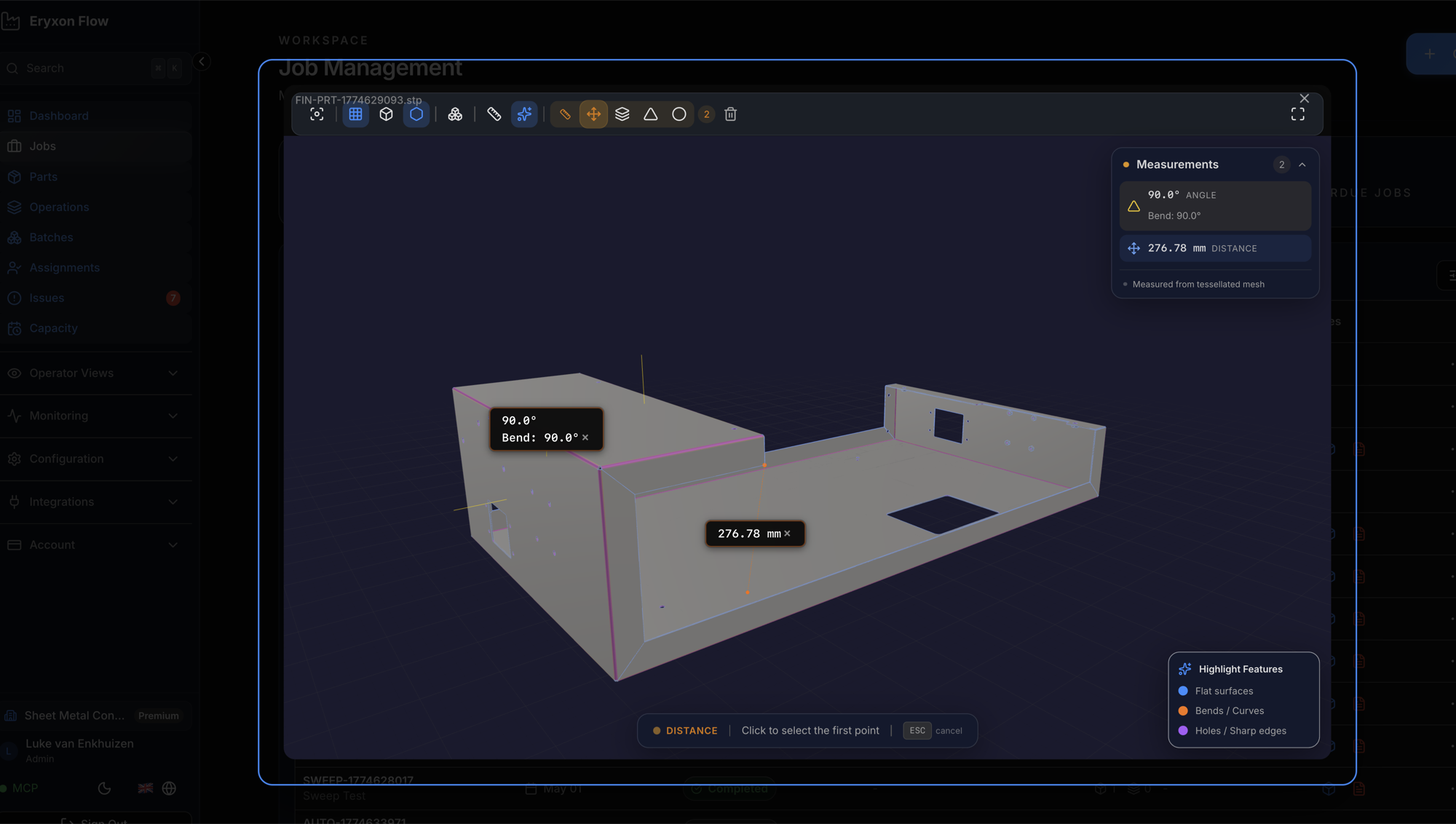
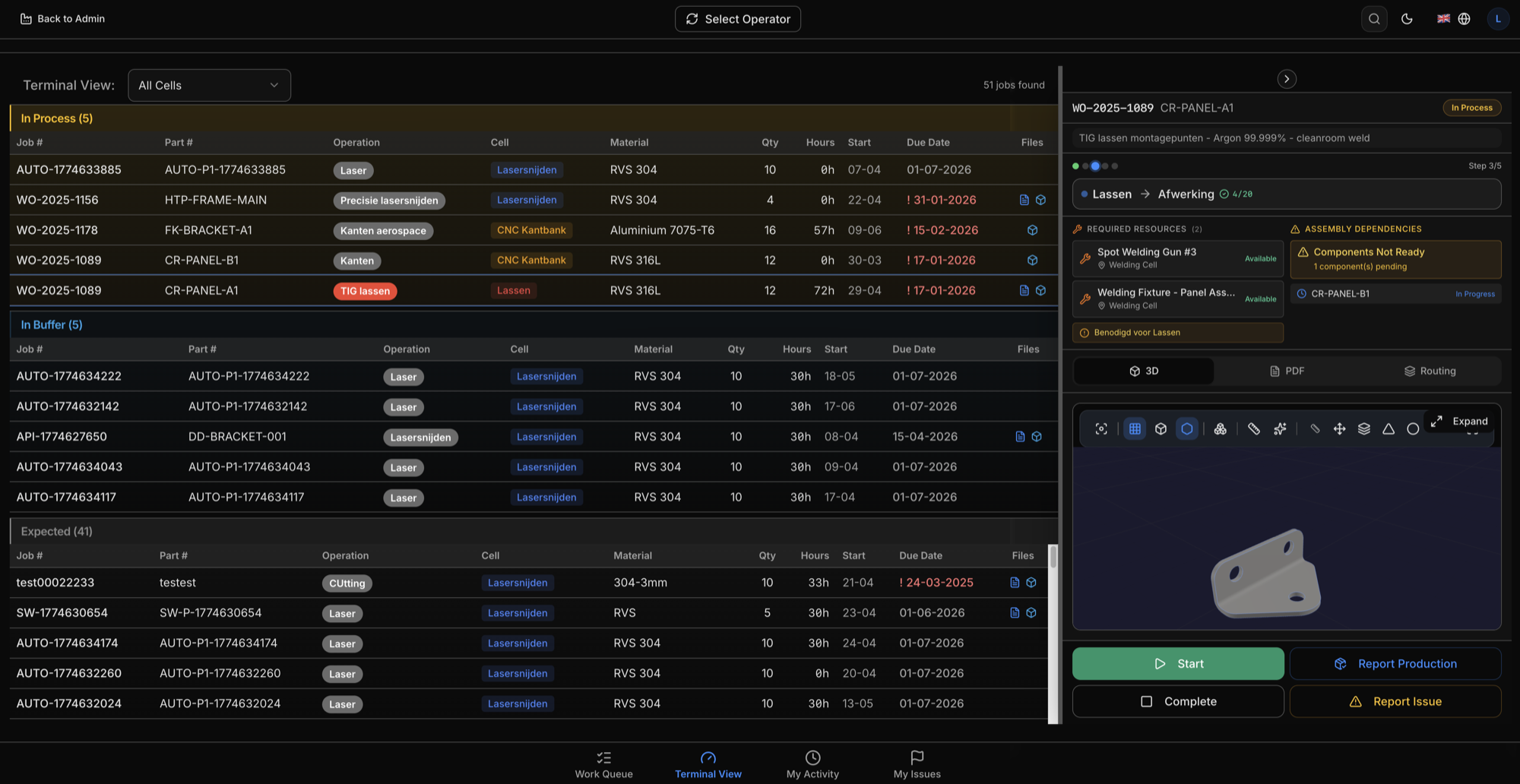
Section titled “What it does”The 3D STEP viewer lets you view CAD models directly in the browser. Upload a STEP file to a part, click “View 3D”, and inspect the model from every angle — no desktop CAD software needed.
Features
Section titled “Features”- View
.stepand.stpfiles in the browser - Orbit, zoom, and pan with mouse or touch
- Exploded view to separate assembly components
- Wireframe mode toggle
- Auto-sized grid that adapts to model dimensions
- Fit-to-view to center and frame the model automatically
- Measurement tools: distance, thickness, angle, and radius
- PMI overlay when PMI data has been extracted
- Upload, view, and delete CAD files per part
- Tenant-isolated file storage
Supported file formats
Section titled “Supported file formats”| Format | Extensions | Viewer |
|---|---|---|
| STEP | .step, .stp | 3D interactive viewer with measurements |
.pdf | Built-in PDF viewer for drawings and documents |
How to use it
Section titled “How to use it”Upload a CAD file
Section titled “Upload a CAD file”- Go to Admin Dashboard > Parts
- Click a part to open the detail modal
- Scroll to the 3D CAD Files section
- Click Choose STEP files or drag and drop your files
- Click Upload
View a 3D model
Section titled “View a 3D model”- Click the View 3D button next to any uploaded file
- The viewer opens full-screen
Controls
Section titled “Controls”| Action | Input |
|---|---|
| Rotate | Left-click and drag |
| Zoom | Scroll wheel |
| Pan | Right-click and drag |
| Center model | Click Fit View |
| Wireframe | Toggle in toolbar |
| Exploded view | Toggle in toolbar, adjust slider |
| Grid | Toggle in toolbar |
Measurements
Section titled “Measurements”Select a measurement tool from the toolbar, then click points or faces on the model. Available tools:
- Point distance — click two points to measure the distance between them
- Face distance — click two faces
- Face angle — click two faces to measure the angle
- Radius — click a curved face
Delete a file
Section titled “Delete a file”Click the trash icon next to the file and confirm.
File size recommendations
Section titled “File size recommendations”- Best performance: files under 10 MB
- Maximum upload size: 100 MB
- Browser parsing limit: roughly 50 MB — larger files may slow down or fail to render
- Large assemblies: split into sub-assemblies where possible
Troubleshooting
Section titled “Troubleshooting”Model won’t load
Section titled “Model won’t load”Check the browser console for error messages:
- “Failed to load STEP parser library” — usually a network issue. The parser is loaded from a CDN at runtime. Check your internet connection and any firewall rules.
- “No geometry found in STEP file” — the file may be corrupt or empty. Try re-exporting it from your CAD software.
Model appears off-center
Section titled “Model appears off-center”Click the Fit View button in the toolbar.
Model looks wrong or incomplete
Section titled “Model looks wrong or incomplete”- Verify the file opens correctly in desktop CAD software
- Try re-exporting as STEP AP214
- If the file is very large, try splitting the assembly
Advanced CAD integration
Section titled “Advanced CAD integration”The built-in viewer handles geometry visualization and measurements for most shop floor use cases. For advanced requirements like PMI (GD&T annotations from the model), server-side tessellation, or CAD format conversion, Eryxon Flow supports an optional CAD backend service.
Partners like Sheet Metal Connect can help set up advanced CAD processing pipelines. Get in touch to discuss your requirements.